
Register vector fonts
Four-step wizard; the installer ships a subset; more fonts on the forum.
Overlay text, stylized text, and slider step labels only accept registered vector fonts. Dropping a TTF/OTF into the install fonts folder does not make it available.
Open Settings → Register vector font…, or Import / register… in font management. 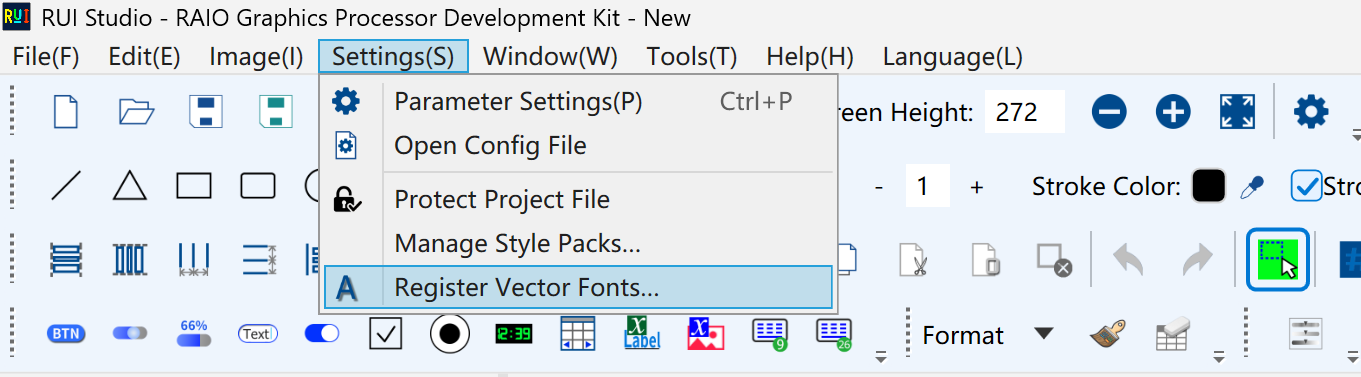
Fonts that ship with the app
The installer seeds a built-in set (they appear in the dropdown with no extra wizard), for example:
- Alibaba PuHuiTi 3 (Thin / Regular / SemiBold)
- Source Han Sans SC and Source Han Serif SC (Regular / Medium / Bold)
- LXGW WenKai (Light / Bold)
- Smiley Sans Oblique
- Source Code Pro (Regular / Medium / Bold)
- A few decorative or pixel Latin faces (DotGothic16, Bitcount, Geist Pixel, Jersey 25)
The installer only includes this subset. Download additional prepared fonts from the forum, then run the wizard on this PC:
Forum → Components & widgets → Vector fonts
Open the vector-font download page
Confirm the license yourself. The wizard asks you to pick a license type and sign a commitment letter.
> [Figure] Forum page Components & widgets / Vector fonts.
Registration (four steps)
- File check: pick
.ttf/.otf/.ttc. A TTC needs a face. Size and SHA256 are shown. Blacklisted files cannot be registered. - License type: click the license you actually hold (personal, commercial, embedded, OFL, Apache, and so on). Nothing is pre-selected.
- Commitment letter: scroll to the end, tick I have read the full text, and enter the committing party (person or company). The tick is not auto-checked.
- Done: click Register. The face then appears in the overlay-text font list.
> [Figure] The four wizard steps.
Before the first export / pack, accept the font disclaimer in Help. Unregistered or revoked faces abort export and list page number plus history #.
Font management can revoke a face (it leaves the dropdown; the letter stays). Back up %LocalAppData%\RUI_Studio if you reinstall or change PCs.
How to place text, art styles, and step labels: Overlay text.