
Overlay text (vector)
Registered vector fonts to JPG/BMP/PNG; art styles; step overlay labels.
Toolbar Overlay text. Fonts must be registered. Dropping a TTF into the fonts root is not enough. The installer ships only some faces; get more from the forum vector-font list and register them. 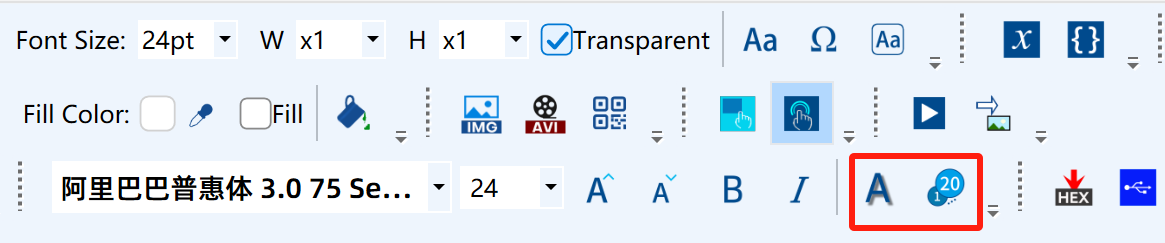
You only need these properties:
- Output format: JPG / BMP / PNG
- Solid-color background
- Opacity
New items are usually BMP with no solid fill. PNG sits transparent on the artwork; JPG/BMP composite with the background below, then pack.
Slider step labels and button companion text use the same composite path. If text looks soft or a white line appears on the right, check JPG and a crop that hugs the edge. Export with the current app version — you usually do not pad sizes to even numbers yourself.
Stylized text (art styles)
Stylized text is overlay text plus art effects, not a separate element type. With overlay text selected, the Art row can stack:
| Effect | Role |
|---|---|
| Outline | Stroke around glyphs |
| Shadow | Drop shadow |
| Glow | Halo |
| Gradient | Two-color fill |
| Emboss / Engrave / Deboss | Relief |
| Reflection | Mirror under the text |
Extra fields (stroke width, colors, shadow offset) appear after you pick an effect. Toolbar family, size, bold, and italic apply to the selection.
> [Figure] Font toolbar; stylized-text icon (A with number badges) and its menu.
Multi-select overlay text to toggle the same effects and rotation at once. Position and string stay per item.
Effects bake into the packed image; the panel does not run vector styles at runtime.
Step overlay labels
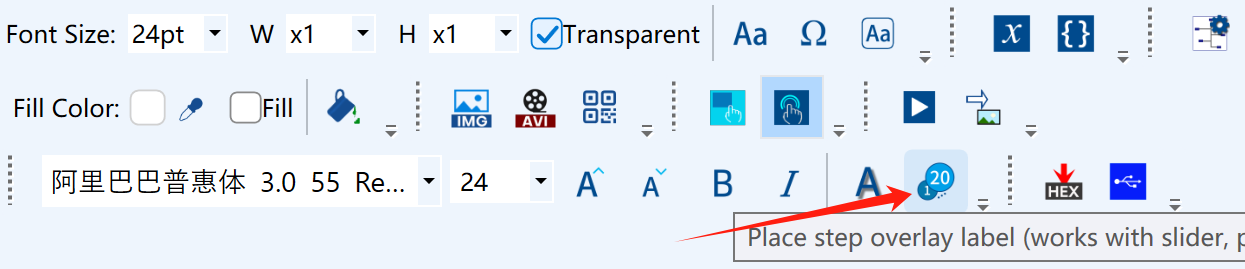
Bind them in refresh associations on a slider / progress bar / touch area / toggle / push button. The current step shows the matching string (firmware switch on packed images).
How to place
- Controls group → Step overlay label, click the canvas; or
- Select at least two overlay (stylized) texts, right-click Merge to step overlay label (keeps the first item’s art style).
> [Figure] Step-overlay tool, or the merge command on the context menu.
A blue badge shows the step count. Rotation: angle + slider in properties; a red dashed handle on the canvas.
Where the strings come from
Content source:
| Source | Role |
|---|---|
| Manual list | Default about 0…10, one step per line |
| String table | Rows map to steps |
| Numeric variable | Start, end, increment; note “will synthesize N images”; cap 256 |
Hook up a slider
In the slider (or progress bar / button) refresh associations, tick this control. Do not mix it with seven static step images or seven loose overlay texts in the same group. The design canvas shows only the active step so PNG frames do not stack into a white block.
Use Preview step in properties. Dragging in effect demo should follow the step.
Split into overlay texts restores separate items and expands the association ids. Merge and split are each one undo.
Step labels still need a registered font and the same output-format rules as overlay text.